

Assigning the Scholastic Reading Measure
About the Scholastic Reading Measure
About the Scholastic Reading Measure
Literacy Pro includes the Scholastic Reading Measure ("SRM"), an adaptive reading assessment that provides valid and reliable Lexile measures. The SRM matches students to books while informally monitoring student progress. Teachers assign the SRM to students, and after students complete the assessment, their Lexile measures are automatically recorded in Literacy Pro.
It is recommended that teachers administer the SRM three times during the school year: at the beginning, middle, and end. This will enable teachers and administrators to informally monitor student progress throughout the year.
Accessing the Scholastic Reading Measure
Accessing the Scholastic Reading Measure
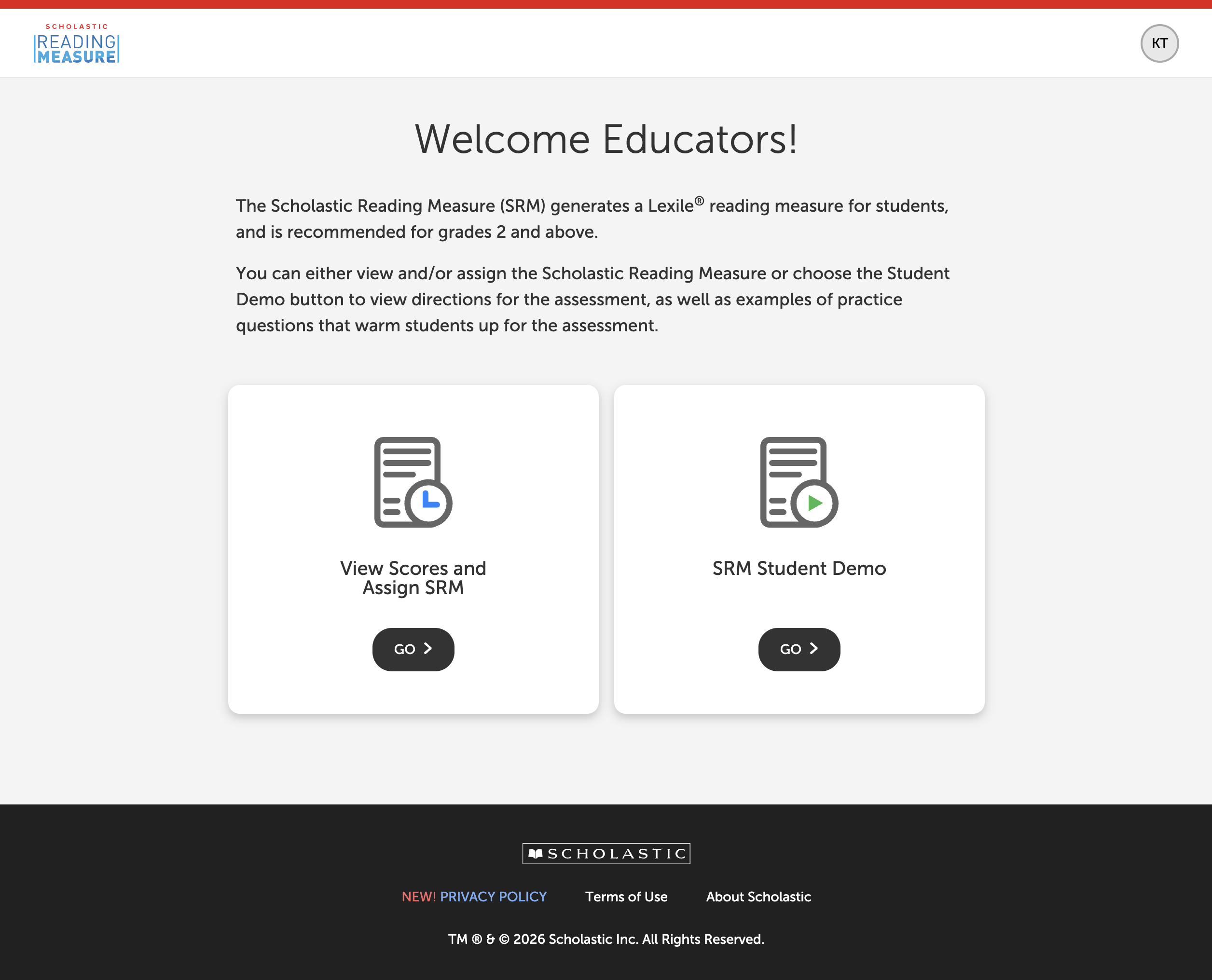
To begin assigning the SRM, select the Scholastic Reading Measure tile in your Scholastic Education Platform dashboard.

Next, you can View Scores and Assign SRM to individual students, an entire class, or (if you are an administrator), entire grade level(s). You can also watch the SRM Student Demo video from this page.
Viewing a Student’s Lexile Measure
Viewing a Student’s Lexile Measure
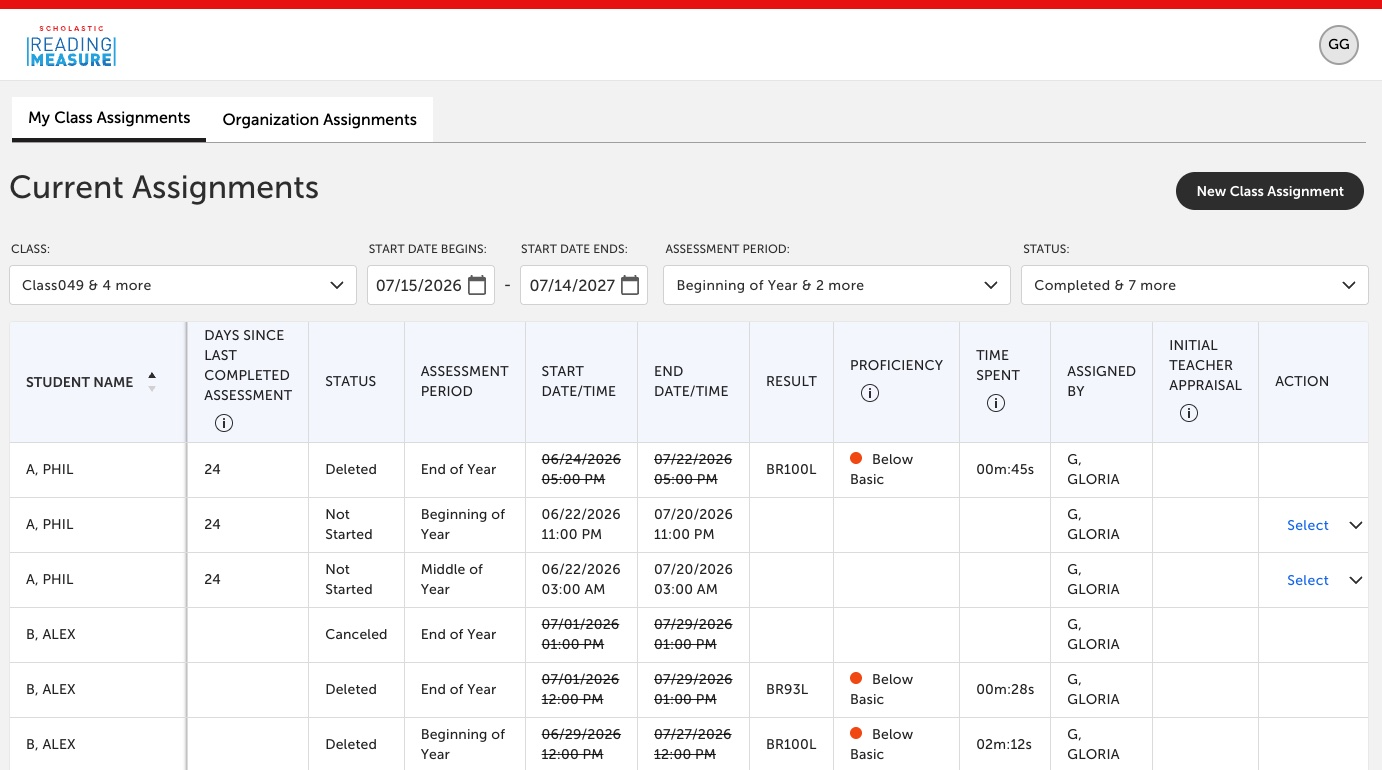
If you are a teacher with classes, you will see that students who have completed the SRM will have their Lexile® Reading Measure score displayed in the Result column on the My Class Assignments page (shown below) as well as in the Student Leveling Report.
How to Assign the SRM as a Teacher
How to Assign the SRM as a Teacher
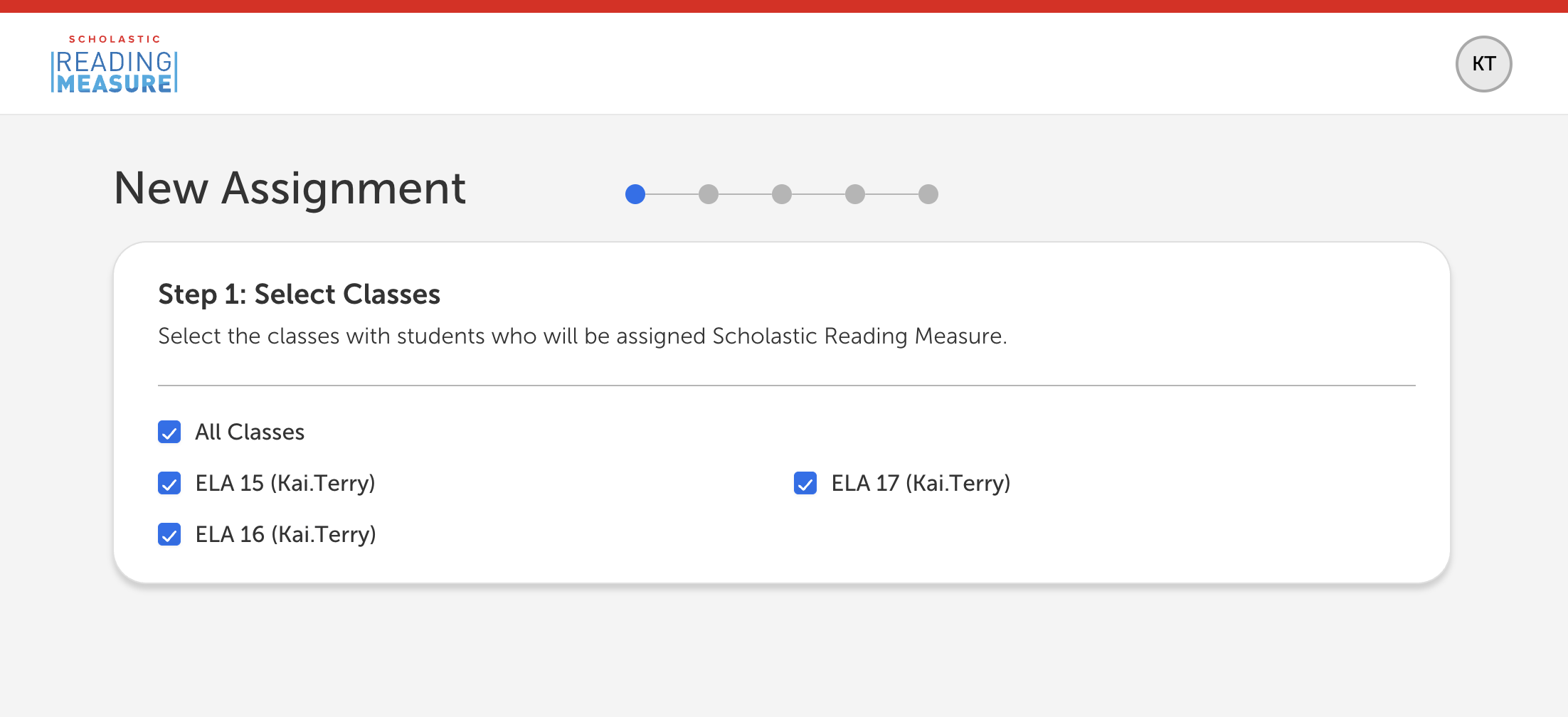
To start a new assignment, first choose the "New Class Assignment" button and select the class(es) you would like to assign the SRM. If you don't have any classes set up yet, you will have to do that first.
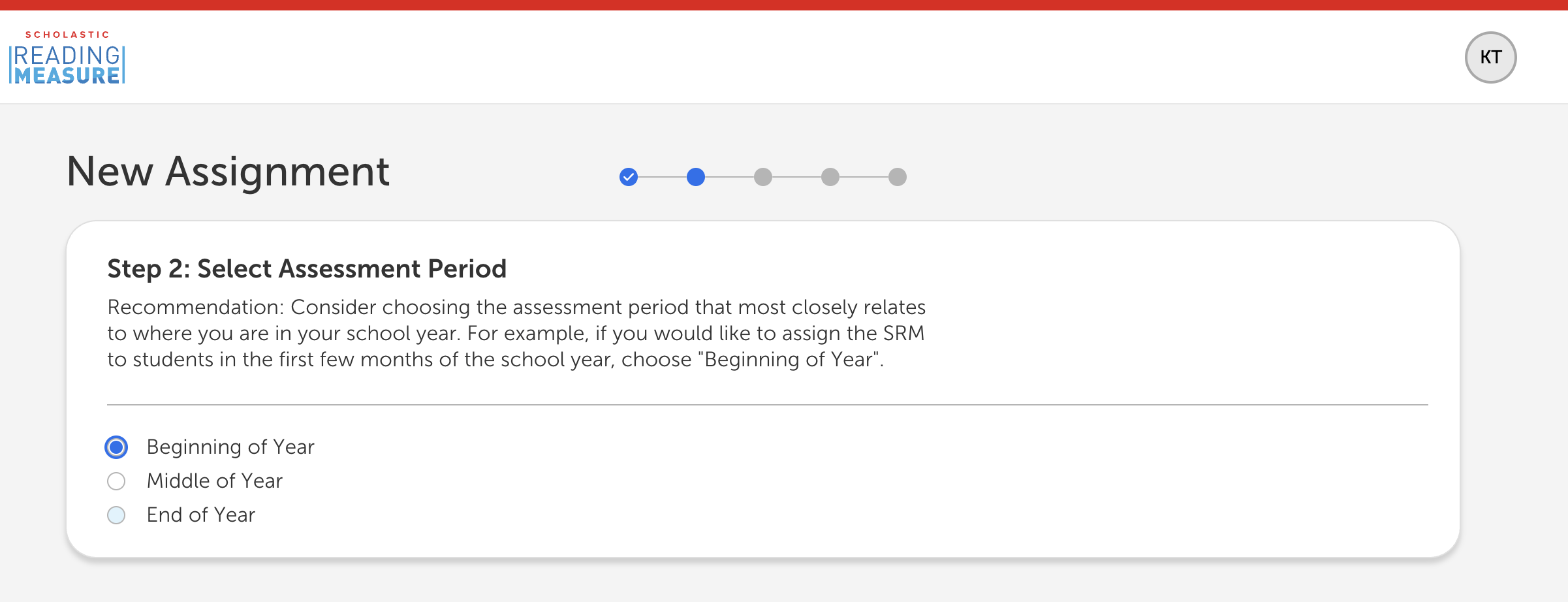
Next, select the Assessment Period (Beginning of Year, Middle of Year, or End of Year).
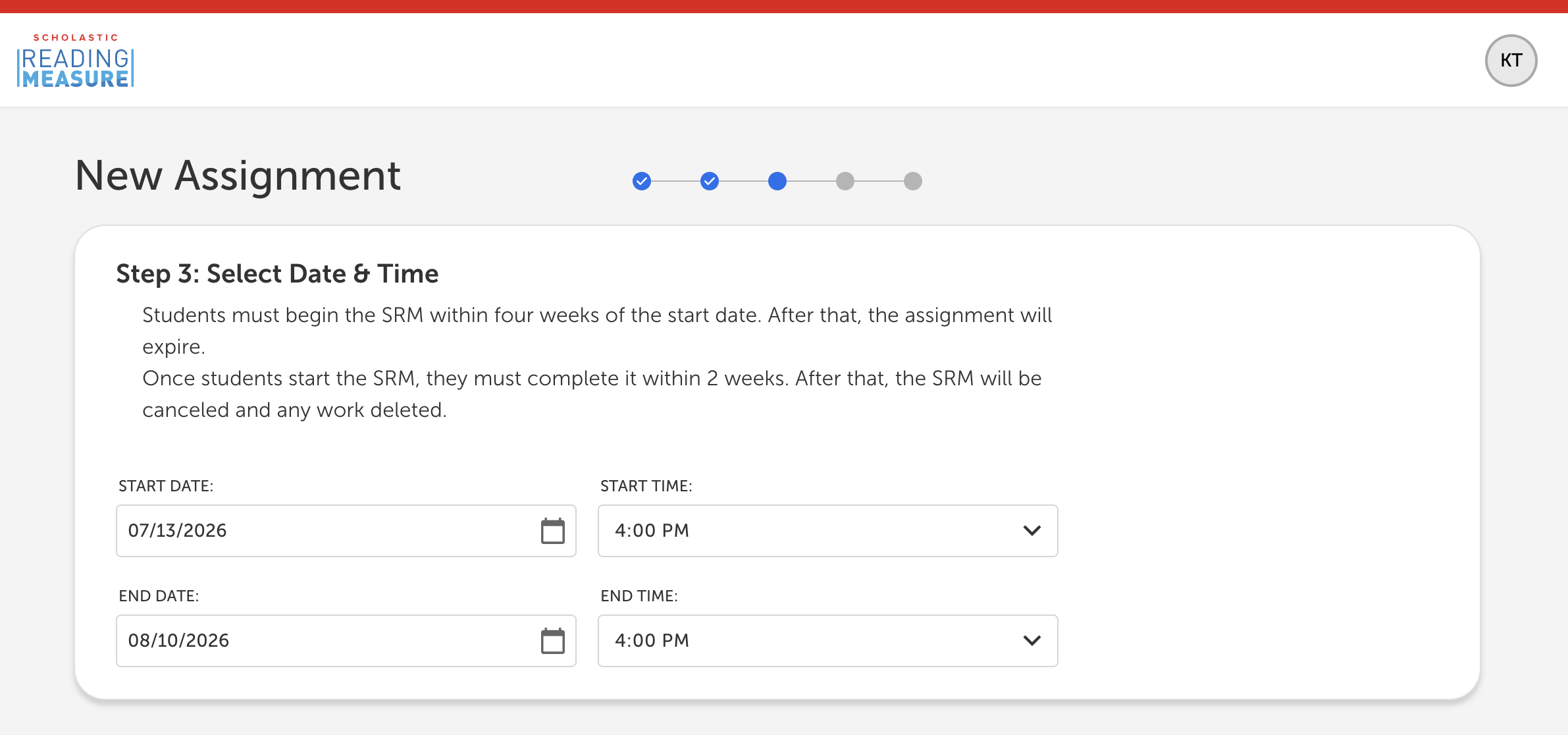
Third, select the assignment time period. The students must begin the SRM within four weeks of the start date. After that, the assignment will expire. Once the students start the SRM, they must complete it within two weeks. After that, the SRM will be canceled and any work deleted.
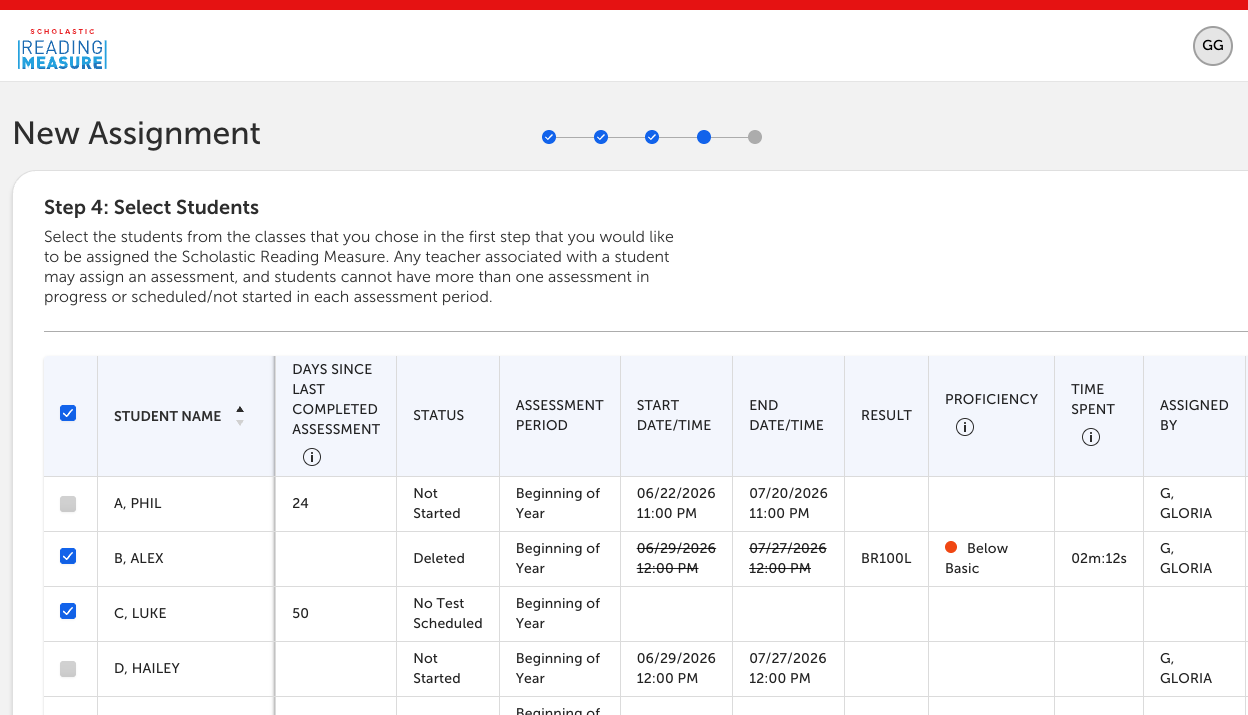
Teachers can assign the SRM to individual students or an entire class by checking the box(es) to the left of the student(s) they wish to assign the assessment to.
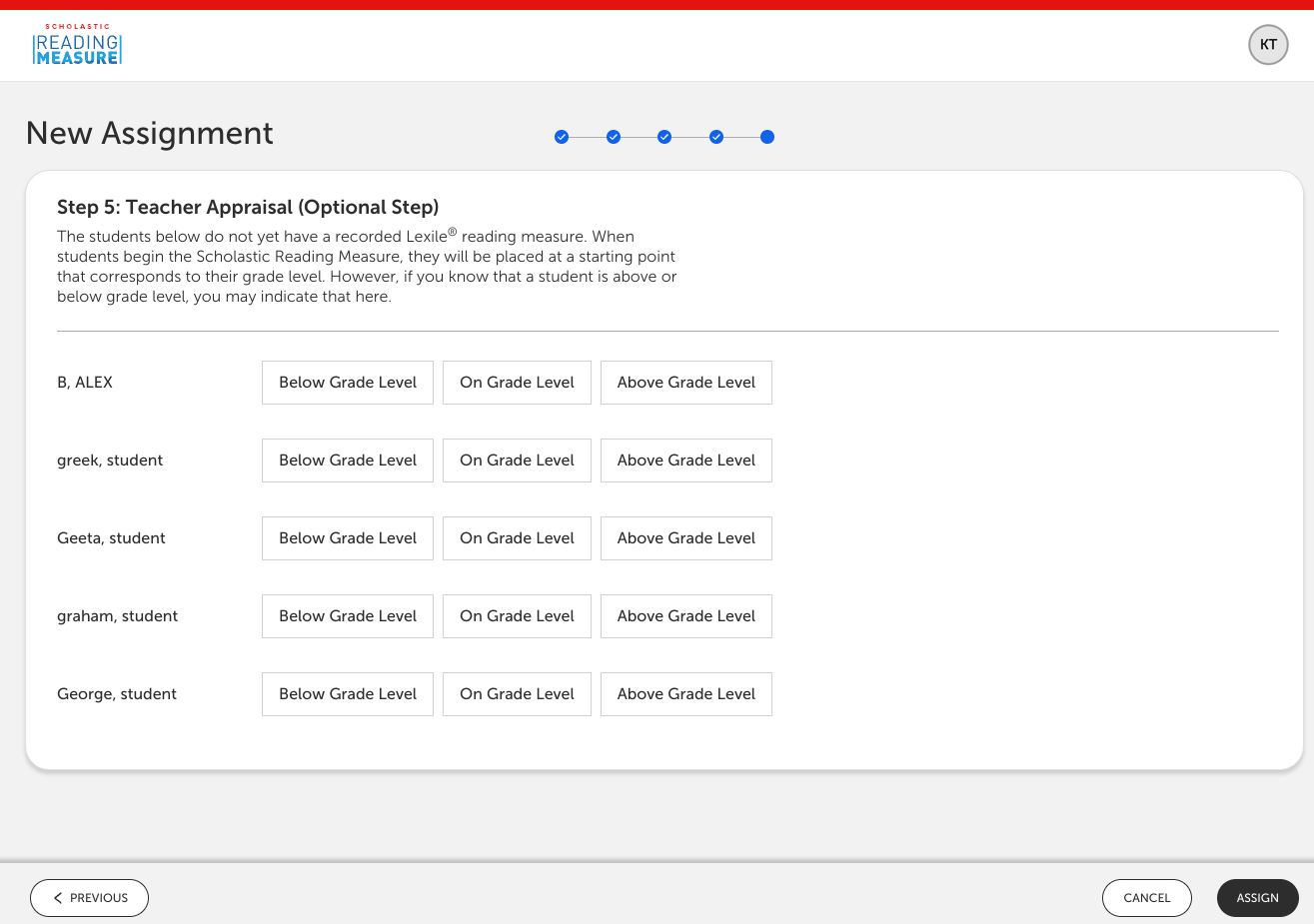
When students begin the SRM, they will be placed at a starting point that corresponds to their grade level. However, if you know that a student is reading above or below their grade level, you have the option to indicate that in the final step of creating a new SRM assignment.
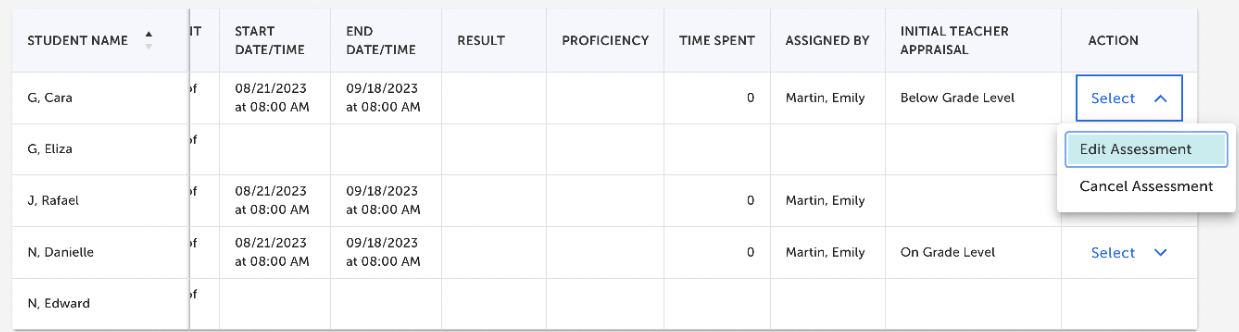
After assigning the SRM to your students, you will see the My Class Assignments screen showing information about the students that have been assigned the assessment. On this page, you will also be able to view the following information:
The number of days since the students last completed an assessment
The status of the student’s assessment, including whether it has been scheduled, canceled, or completed*
The assessment period(s) that the student has been assigned an assessment for
Each assessment’s start date and time as well as the end date and time
The result of the assessment (if applicable) in the form of a Lexile® Reading Measure as well as the student’s proficiency
Time spent on the assessment
Who the assessment was assigned by
The initial teacher appraisal (if applicable)
* School and district administrators can also assign the SRM. If duplicate assignments are made during the same time period, the most recent assignment stands.
How to Assign the SRM as an Administrator
How to Assign the SRM as an Administrator
To begin SRM assignments, select the Scholastic Reading Measure tile in your Scholastic Education Platform dashboard.
If you are an administrator as well as a teacher with classes, you will see two tabs: My Class Assignments and Organization Assignments.
Choose My Class Assignments and follow the instructions under the “How to Assign the SRM as a Teacher” section if you want to assign the SRM to students in your classes.
Choose Organization Assignments and follow the below instructions if you want to assign the SRM as an administrator.
If you are an administrator only—and not also a teacher with classes—you will not see tabs and will automatically land on the Organization Assignments page. Choose the "New Organization Assignment" button and follow the below steps.
Step 1: Select the assessment period (Beginning of Year, Middle of Year, End of Year)
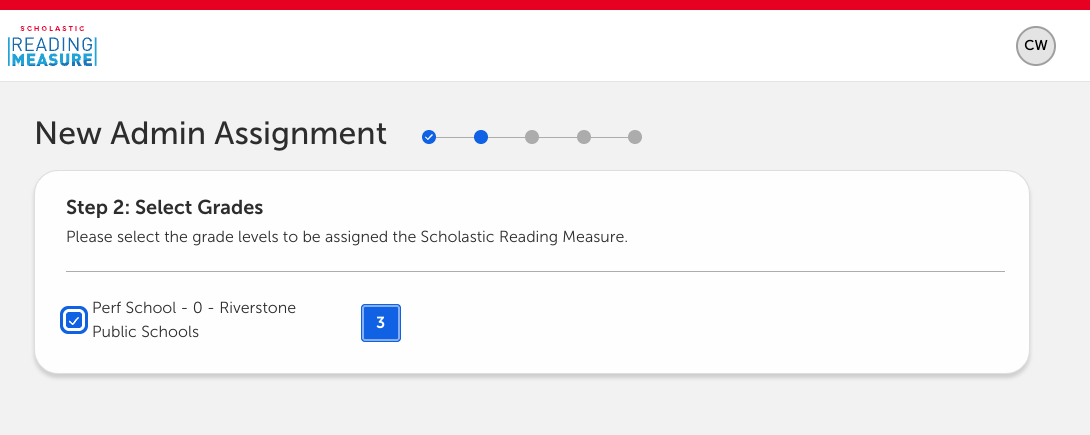
Step 2: Select the sites and grades with students who will be assigned the SRM.
Step 3: Select the start and end dates for these students to take the SRM
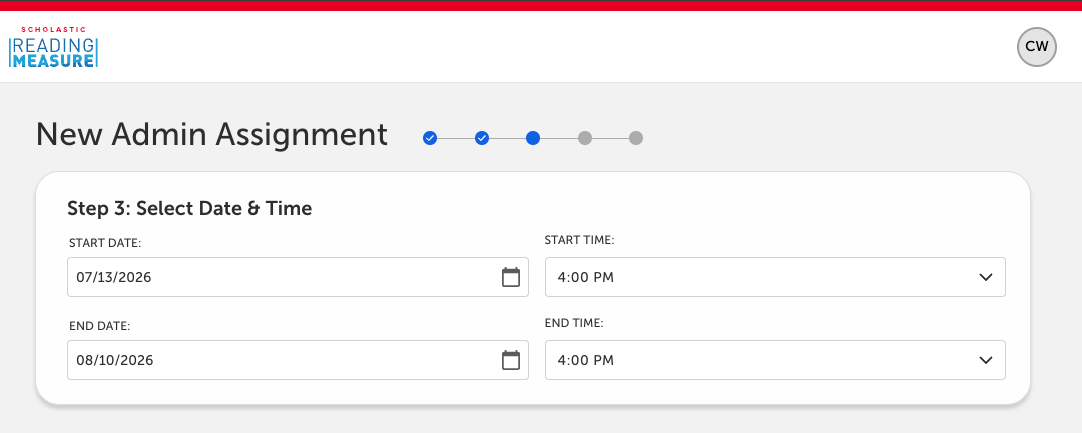
Please take note of the following:
- Students must begin the SRM before the end date selected by the administrator. After that date, the SRM will be canceled and any work deleted.
- Once students start the SRM, they must complete it within two weeks. After that, the SRM will be canceled and any work deleted.
- Teachers and other administrators can also assign the SRM. If duplicate assignments are made, the most recent assignments stand.
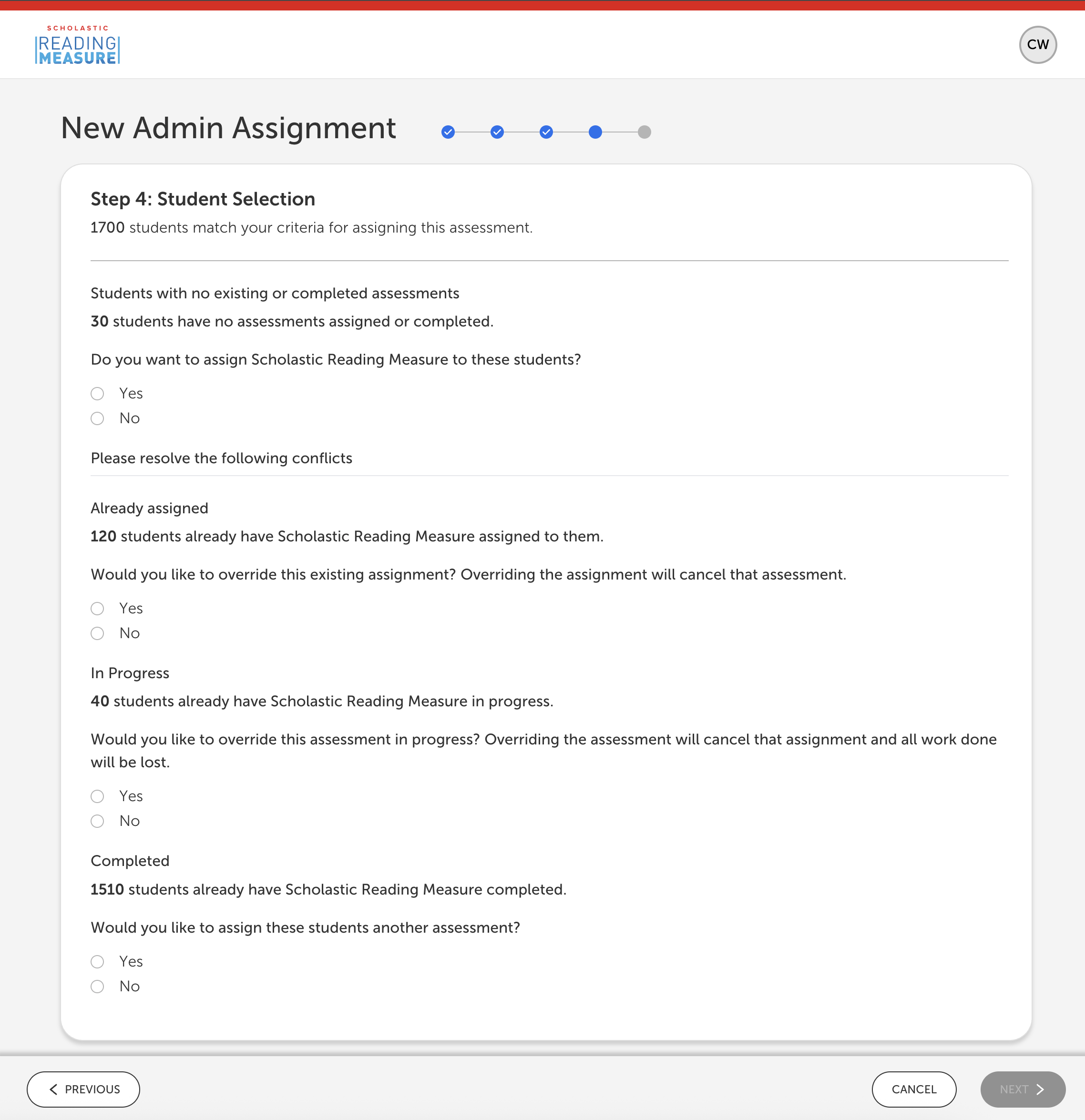
Step 4: Select student criteria
Here you are given the option to confirm assignments for the students that match your assessment criteria.
Resolve possible conflicts, including students that already have the SRM assigned to them, with the option to override the existing assignment or students who already have the SRM in progress.
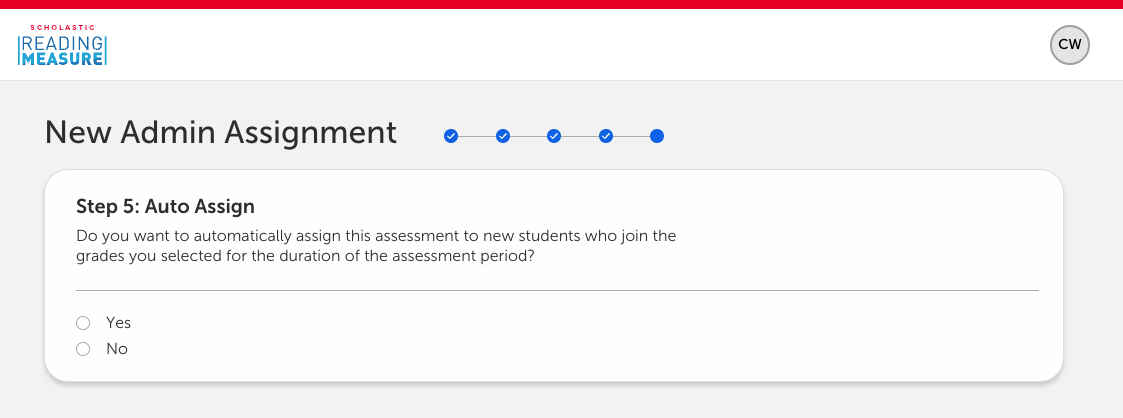
Step 5: Auto Assign. Select "yes" if you would like to automatically assign this assessment to new students who join the grades you selected for the duration of the assessment period.
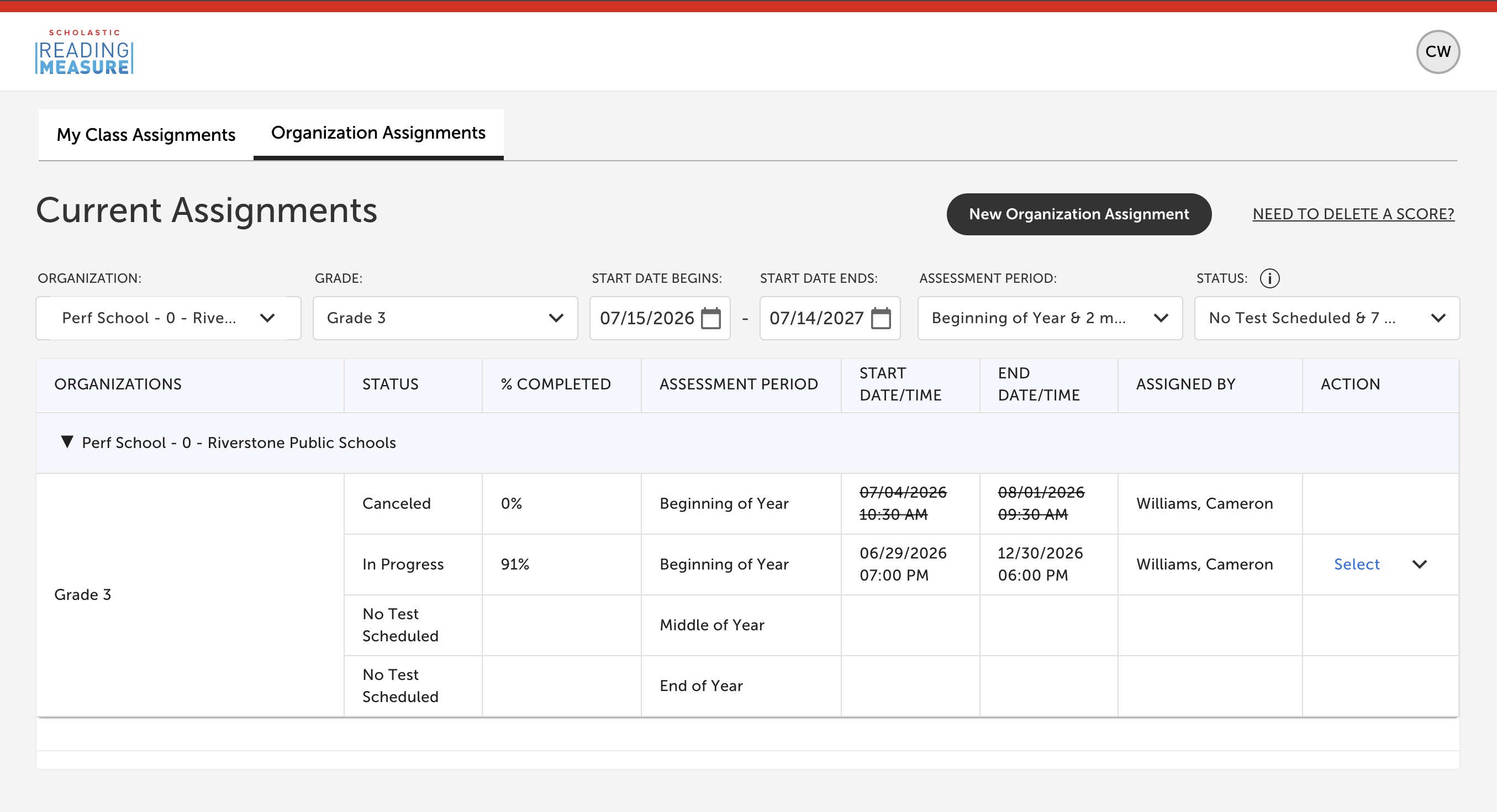
Confirmation Screen: You will then see a complete list of assignments on your Organization Assignments tab.
Canceling and Reassigning the SRM
Canceling and Reassigning the SRM
To cancel or reassign the SRM, use the Action column to the right to select Edit Assessment or Cancel Assessment for each student (if you are a teacher), or each grade level (if you are an administrator).
Deleting Scores
Deleting Scores
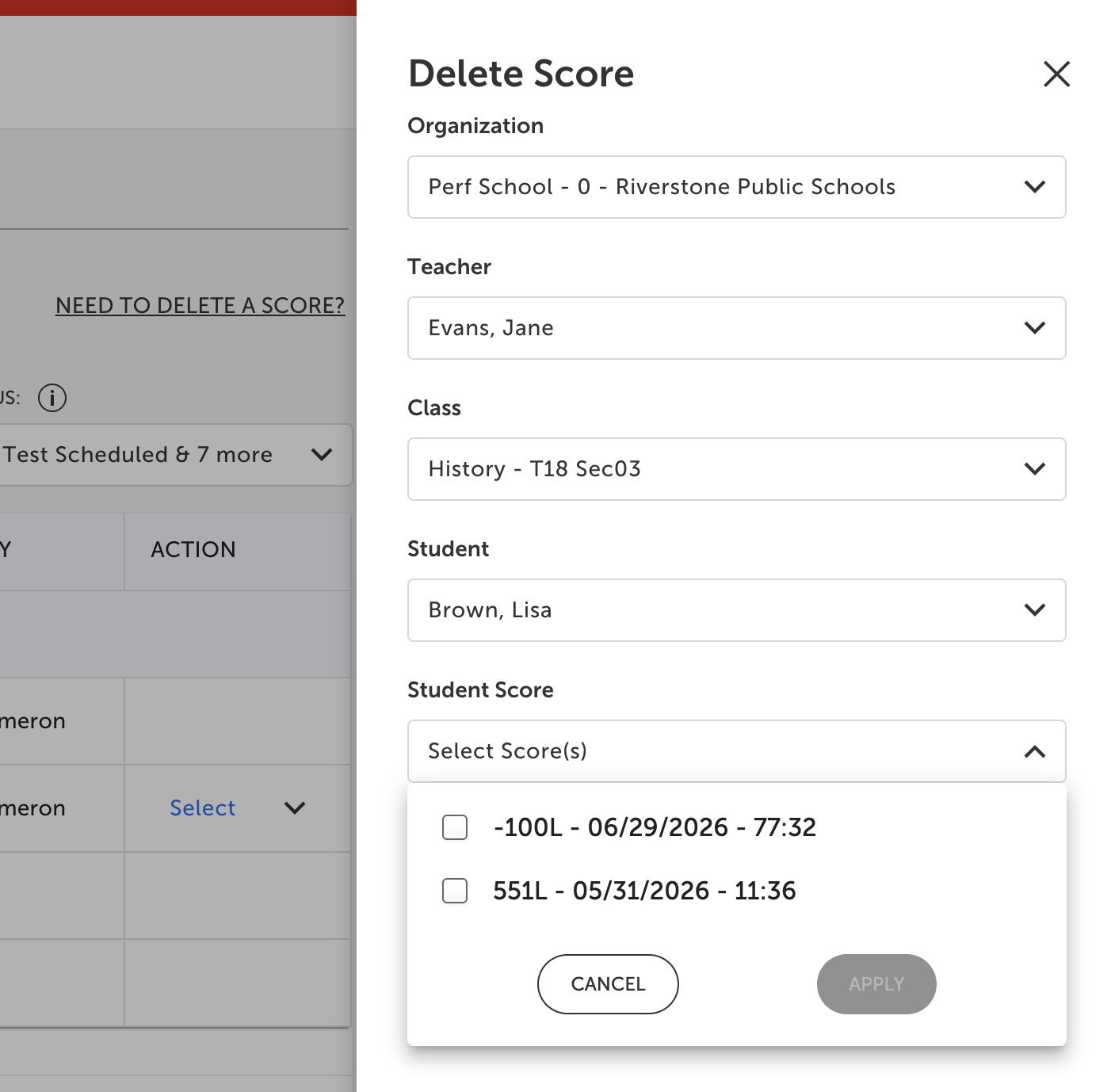
Admins can choose the “NEED TO DELETE A SCORE?” link on the main landing page to open the “Delete Score” slider. From here, they can drill down to a teacher, class, student, and student score to delete a score(s) for a student so that it does not affect their Lexile® Reading Measure.
Need More Help?
Contact Customer Service | Mon-Fri 8:00 AM - 6:00 PM Eastern Time
Rostering & Onboarding Support: RosteringSupport@Scholastic.com
For Magazines+
For Scholastic Teachables
1-800-246-2986
For all other Digital Programs